Pages

Tuesday, 27 May 2014

Sound Recorder in C#


Hello Programmer,

Here you are going to create a Sound Recorder in C#. The Recorded sound will be saved in .wav format. So let's start;


Steps

1. Open Visual Studio -> New Project -> Windows Form Application with name
    SoundRecorder.

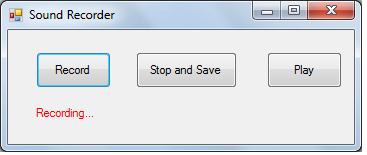
2. Now add 3 buttons and a  label to the empty form and design it as shown in 
    the below screenshot.


3. Now change the name and text of the added controls from the Properties dialog box;

   Control          Control Name                Text
    Button1           btnRecord                    Record
    Button2           btnStopandSave            Stop and Save
    Button3           btnPlay                        Play
    label1              label1                          Recording...

4. Now double click on the Record button and copy the below code;

            label1.Visible = true;
            mciSendString("open new type waveaudio alias Som", null, 0, 0);
            mciSendString("record Som", null, 0, 0);

5. Now double click on the Stop and Save button and copy the below code;

            label1.Visible = false;
            mciSendString("pause Som", null, 0, 0);
            SaveFileDialog save = new SaveFileDialog();
            save.Filter = "wave|*.wav";
            if (save.ShowDialog() == DialogResult.OK)
            {
                mciSendString("save Som " + save.FileName, null, 0, 0);
                mciSendString("close Som", null, 0, 0);
            }
         

6. Now double click on the  Play button and copy the below code;

           if (record == "")
            {
                OpenFileDialog open = new OpenFileDialog();
                open.Filter = "Wave|*.wav";
                if (open.ShowDialog() == DialogResult.OK) { record = open.FileName; }
            }
            mciSendString("play " + record, null, 0, 0);

7. Now double click on the  Form and copy the below code;

         label1.Visible = false;

8. Now please update your code from the complete code shown below;

Form1.cs


using System;
using System.Runtime.InteropServices;
using System.Windows.Forms;

namespace SoundRecorder
{
    public partial class Form1 : Form
    {
        [DllImport("winmm.dll")]
        private static extern int mciSendString(string MciComando, string MciRetorno, int MciRetornoLeng, int CallBack);

        string record = "";
        public Form1()
        {
            InitializeComponent();
        }

        private void Form1_Load(object sender, EventArgs e)
        {
            label1.Visible = false;

        }

        private void btnRecord_Click(object sender, EventArgs e)
        {
            label1.Visible = true;
            mciSendString("open new type waveaudio alias Som", null, 0, 0);
            mciSendString("record Som", null, 0, 0);
        }

        private void btnStopandSave_Click(object sender, EventArgs e)
        {
            label1.Visible = false;
            mciSendString("pause Som", null, 0, 0);
            SaveFileDialog save = new SaveFileDialog();
            save.Filter = "wave|*.wav";

            if (save.ShowDialog() == DialogResult.OK)
            {

                mciSendString("save Som " + save.FileName, null, 0, 0);
                mciSendString("close Som", null, 0, 0);
            }
        }

        private void btnPlay_Click(object sender, EventArgs e)
        {
            if (record == "")
            {
                OpenFileDialog open = new OpenFileDialog();
                open.Filter = "Wave|*.wav";
                if (open.ShowDialog() == DialogResult.OK) { record = open.FileName; }
            }
            mciSendString("play " + record, null, 0, 0);
        }
    }
}


8. Rebuild and Run the project;
  • Click on Record to start Recording.   
  • Recording label will be visible while sound is being recorded.
  • Click on Stop and Save button to Save the Recording. You will be asked for the location and filename to Save.
  • Now click on Play button to play the recorded file. You will have to select the file from the saved location.
        ENJOY Recording :-) 


OUTPUT


Conclusion

In case of any doubts / errors, please drop in a comment.


See Also

Thursday, 22 May 2014

Text to Speech in C#


Hello Programmers,


Here you are gonna learn how to convert Text to Speech in C#  i.e you are going to create a software that Talks!

So lets start;


Thursday, 15 May 2014

How to Start and Kill a Process in C#


Hi, 

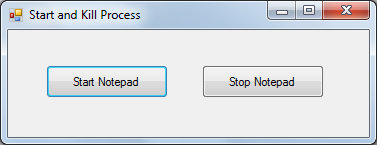
Here you are gonna learn to Start and Kill a Process in C#. Suppose if you want to open / close an application such as Notepad, Calculator etc with C# codes, this tutorial will be helpful. 

Let's start;


Tuesday, 6 May 2014

File Read and Write in C#


Hi,

Here you are gonna learn File Read and Write in C#.

The below project deals with;
    a) Getting data (2 names) from the
        user.
    b) Write the data into a text file.
    c) Reading the data from the text file
        and displaying it.

so let's start

Sunday, 4 May 2014

How to Hide Folders in C#


Hi,


Hope you have read my previous post on Lock a Folder in C#. Now here you can learn How to Hide a Folder in C#. So let's start;

Wednesday, 30 April 2014

Serialize and Deserialize in C#


Hi,


Here you are gonna learn about Serialization & Deserialization in C#.

Definition

Serialization is the process of converting an object into a stream of bytes in order to store the object or transmit it to memory, a database, or a file. Its main purpose is to save the state of an object in order to be able to recreate it when needed. The reverse process is called Deserialization (From MSDN).

Thursday, 24 April 2014

Lock a Folder in C#


Hi,

Here you will learn how to lock and Unlock folders using C#. This tutorial is of good use if you are planning to create a Folder Locking Software. 


Let's start;

Tuesday, 8 April 2014

How to Change IP Address in C#


Hi Friends, 


You have learned to Get IP Address in C# 
from the last post. Here you can learn to change IP Address using C#.

Let's start;

Monday, 31 March 2014

How to get IP Address using C#


Hello All,

Here's a tutorial to get your IP Address using C#. 


N.B: Beginners please follow the link to know How to create your First Windows Form Application.

Wednesday, 26 March 2014

Media Player in C#


Hi,

You have learned to create a Music Player in C#, now here's a tutorial for creating your own Media Player in C# and press OK. 

Monday, 24 March 2014

Music Player in C#


Hi All,


Here you can learn to Create a Music Player in C#. This is a simple tutorial and even beginners can learn without any confusion.

This Player also supports video files (large files are not supported)

Monday, 17 March 2014

Digital Clock in C#

Hi Friends,


This is a simple tutorial to create a Digital Clock in c#. This is presented in a way so that even beginners can learn without any 'hiccups'. So lets start.

Thursday, 13 March 2014

OpenFileDialog in C#


Hi Friends, 

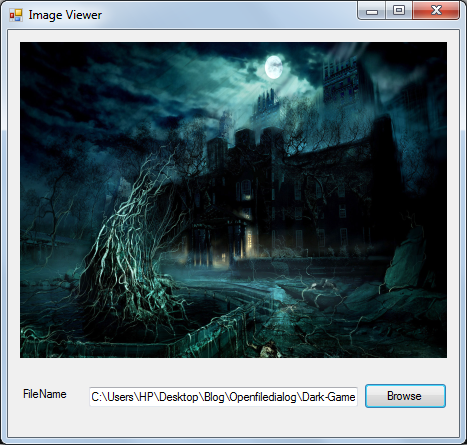
This tutorial is a continuation of First C# Windows Form Application. So now you know how to create a Windows Form Application in c#. Here you will learn how to use OpenFileDialog. OpenFileDialog is a control that allows users to browse folders and select files.

Here is a tutorial for creating an Image Viewer with OpenFileDialog. 


Steps

Thursday, 6 March 2014

First C# Windows Form Application


Hello All,

This is a very simple tutorial on how to create a Windows Form Application in c#.

Requirements

Visual Studio 2008 or higher versions.

What is Windows Forms?
Windows Forms (WinForms) is the name given to the graphical application programming interface (API) included as a part of Microsoft .NET Framework, providing access to native Microsoft Windows interface elements by wrapping the extant Windows API in managed code. (Wiki definition)

So lets start.

Thursday, 27 February 2014

WCF Tutorial for Beginners


Definition of WCF 

Windows Communication Foundation (WCF) is a framework for building service-oriented applications. Using WCF we can build secure, reliable, transacted solutions that integrate across platforms.

Wednesday, 19 February 2014

How to play Video as wallpaper using VLC

Friends, 

Today softsprogrammer is here to share a trick to set any video as your Desktop Wallpaper using VLC Player. VLC Player is a powerful Video Player which has got a lot of features. To learn more features,  please follow this link

Monday, 17 February 2014

Hide Folders in Windows using Command Prompt (Hidden Trick)

Friends,

We all know how to hide a folder in Windows.
Just Right Click on the Folder -> Properties -> Check the Hidden Option -> OK.

These Hidden Folders can be seen if you change the Folder Option to Show Hidden Files. 
Most of them know this trick, so you cannot hide a folder or a file from others using this option.

Softsprogrammer is here with a trick which makes your required Folders to Operating System Files. Please don't panic :-) this doesn't mean that your folder will be converted to an operating system file which the OS needs. No, your Folder's visibility is changed as same as to the visibility of Operating system Files. So these Folders will not be shown if you change the Folder Option to Show Hidden Files. So you can use this trick to hide your personal folders from others.

Sunday, 16 February 2014

How to use Keyboard as Mouse


Friends,

What will you do if our mouse stopped working? This may due to some driver failures, or hardware issues etc. Don't worry, Windows have an inbuilt option called Mousekeys. Most of them are not aware of this feature, but now you are. You can Enable / Disable Mousekeys very easily.

By Enabling Mousekeys, you can use your Keyboard as a substitute to your Mouse.

Friday, 14 February 2014

Find Your Lost Mobile Using IMEI Number


Friends,

International Mobile Station Equipment Identity or IMEI is a unique number to identify mobile phones.To know your IMEI Number just dial *#06# ,you will
get a 15 digit number.

This number can be used to Trace / Stop your phone from using the network whether or not the phone's SIM is changed.

So if your Phone is stolen, you can Find it by using the below trick based on IMEI Number.

Tuesday, 11 February 2014

How to Open Banned Websites

Friends,

Here you will learn an awesome trick to open banned sites without downloading any softwares.

Many websites are banned in Colleges, Offices etc.Using this trick you can access those sites.

Here , I am revealing one of the fastest and secure proxy site for the same.


About Me

I am Tijo Tom, a Computer Engineer from India.Right from my schooling, I had a passion for Programming, PC Tricks, Virus Creation and Hacking.

I started this blog on Jan 1, 2014 to share my views and ideas with the world.

You can know more about me on